10 Essential Tools for Remote Workers and Digital Nomads in 2026
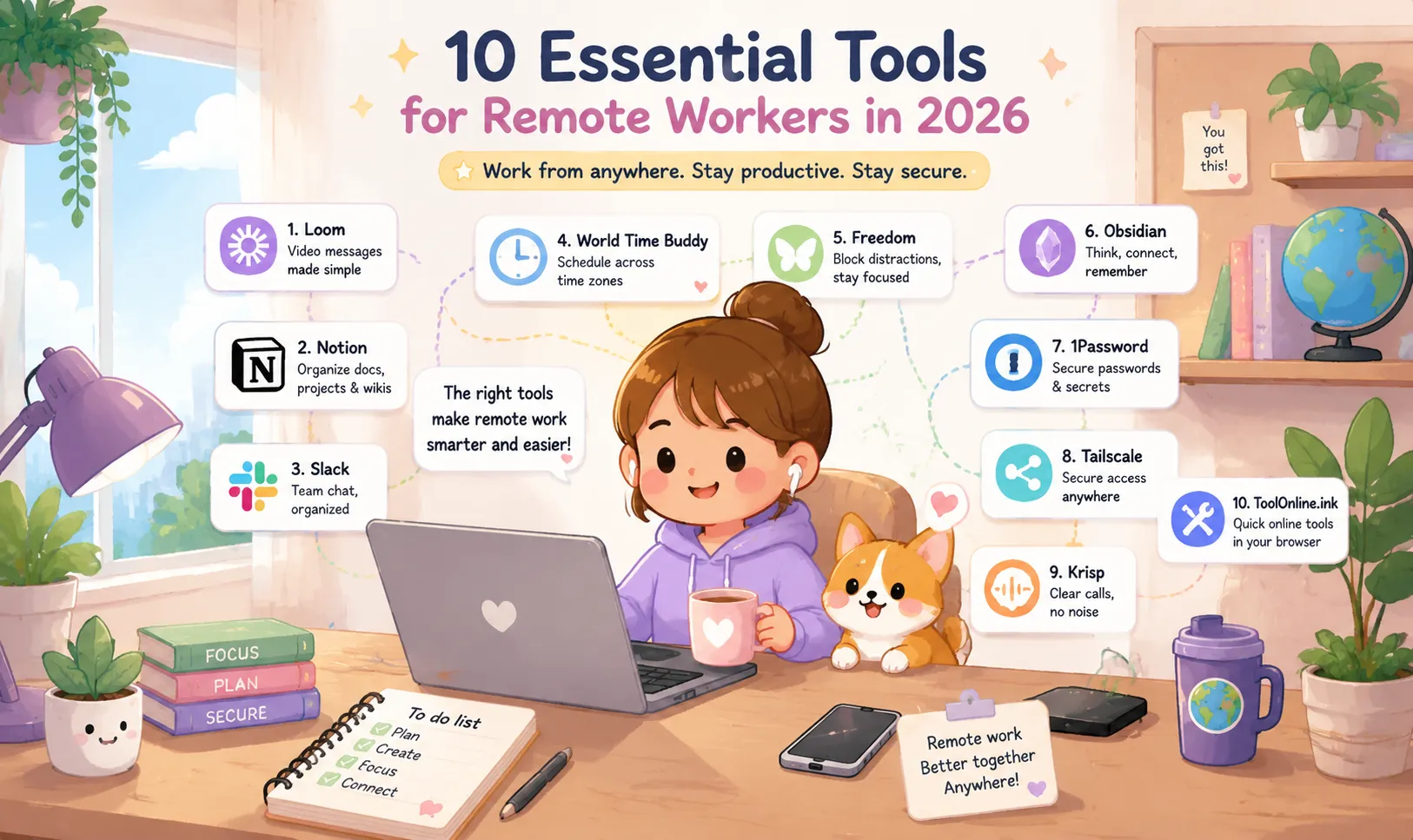
Remote work is no longer limited to answering emails from a home office. Developers, designers, consultants, content creators, marketers, and independent business owners now manage complete workflows from apartments, coworking spaces, hotels, airports, and cafés. That freedom is valuable, but working remotely also introduces practical problems. Important information becomes scattered across several applications. Meetings interrupt deep work. Time-zone mistakes lead to inconvenient calls. Noisy environments make client conversations difficult. Large images and documents are frustrating to send over slow connections, while passwords and confidential files still need to remain protected when you are traveling. A good remote-work toolkit should reduce these problems rather than create more notifications, subscriptions, and complexity. This guide covers 10 useful tools for communication, documentation, scheduling, focus, account security, remote access, clearer meetings, and everyday browser-based tasks. Security reminder: Always follow your employer’s remote-work and data-handling policies. When access to internal systems requires an approved VPN or another secure remote-access solution, use the system provided by your organization. (NIST) Quick Comparison Tool Best for Main advantage Main consideration Loom Asynchronous video updates Explains visual work without scheduling a meeting Long recordings can become another form of meeting Notion Shared documentation and project knowledge Connects notes, wikis, tasks, and projects Requires clear workspace organization Slack Team communication Channels and threads organize discussions Poor notification habits can damage focus World Time Buddy International scheduling Visually compares several time zones The final time should still be added to a calendar Freedom Distraction blocking Blocks websites and apps across devices Strong restrictions require thoughtful setup Obsidian Personal knowledge management Stores notes as local Markdown files Team collaboration requires additional tools 1Password Password and credential management Stores passwords, passkeys, and shared credentials Recovery information must be protected Tailscale Secure remote access Connects approved users and devices through a private network Access rules still require administration Krisp Clearer remote meetings Reduces noise and creates meeting notes Recording and transcription policies must be reviewed OpenReplay Developer Toolbox Quick browser-based utilities Includes JSON, Cron, QR, HEIC, image, and text tools Sensitive data should still be removed before processing No single tool is essential for every remote professional. A software engineer, freelance writer, consultant, and digital nomad may need very different combinations. 1. Loom: Replace Routine Meetings with Short Video Updates Some information is difficult to explain through text alone. A developer may need to demonstrate a software bug. A designer may want to guide a client through a new prototype. A project manager may need to explain several changes on a dashboard. Loom allows users to record their screen and audio, share the recording through a link, and communicate without requiring every participant to be online at the same time. Viewers can also respond through comments and reactions. (loom.com) Useful remote-work scenarios Loom is particularly useful for: Product demonstrations Design reviews Software bug reports Client feedback Employee onboarding Weekly progress updates Internal tutorials Explanations across time zones Why it helps A short recording can sometimes replace a thirty-minute meeting. The recipient can watch it during normal working hours, pause when necessary, and replay a complicated section. This is valuable for distributed teams that have little overlap in their schedules. Use it well A video should not become an excuse to communicate without structure. Include a short written introduction explaining: What the recording covers What the viewer should review Whether a decision is required When the response is needed For example: This four-minute video explains the updated mobile checkout flow. Please review the payment-error state and confirm whether it is ready for development by Thursday at 15:00 UTC. Keep routine updates brief. A fifteen-minute “quick Loom” may simply recreate a meeting without allowing participants to ask questions in real time. Best for: Designers, developers, consultants, customer-success teams, and distributed teams working across several time zones. 2. Notion: Build a Shared Source of Truth Remote teams need a reliable place to store knowledge. Without one, project requirements become scattered across email, direct messages, personal documents, meeting recordings, and outdated task boards. Notion combines documents, team wikis, project information, task databases, and connected workspaces. Project pages can include requirements, updates, action items, links, embedded files, and information from other workplace tools. (notion.com) Useful remote-work scenarios Notion can be used for: Company wikis Project requirements Client portals Editorial calendars Standard operating procedures Meeting notes Product roadmaps Research libraries Employee onboarding Why it helps When documentation and project work are connected, team members can understand both what they need to do and why the task exists. This becomes especially important when colleagues cannot ask immediate follow-up questions. A developer beginning work in Singapore should not need to wait for a product manager in London to wake up before finding the latest requirements. Use it well Avoid building an overly complicated workspace before the team has developed basic documentation habits. Start with a simple structure: Company or team knowledge Active projects Meetings and decisions Processes and templates Archived information Assign an owner to important pages and add review dates where necessary. A beautifully designed wiki becomes useless when nobody knows whether the content is current. Best for: Teams that need collaborative documentation, lightweight project management, and a central knowledge base. 3. Slack: Organize Communication Without Creating Constant Interruptions Slack can support both real-time and asynchronous communication, but the result depends heavily on how the team uses it. Channels organize conversations around teams, projects, clients, or topics. Threads allow detailed replies to remain connected to the original message instead of filling the main channel with several separate conversations. (Slack) Useful remote-work scenarios Slack is useful for: Project communication Team announcements Quick questions Partner collaboration Incident coordination Automated notifications Informal team conversations Why it helps Compared with private email chains or direct messages, shared channels allow people in different time zones to review the same discussion and understand how a decision developed. A new team member can also search past conversations rather than asking colleagues to repeat information. Use it well Slack becomes harmful when every message creates an expectation of an immediate reply. Remote teams should establish a few simple rules: Use shared channels instead of direct messages for project information. Use threads for detailed replies. Mark messages as “FYI” when no response is required. Include a deadline when action is needed. Reserve @channel and @here for genuinely important updates. Record final decisions in the project documentation. Mute non-essential channels during focus periods. A message such as: Can someone review this? is less useful than: Maya, please review the mobile navigation by Friday at 12:00 UTC. Focus on accessibility and menu behavior. Final colors are not ready for review yet. Slack should support the work—not become the work. Best for: Distributed organizations that need searchable communication and integrations with other workplace systems. 4. World Time Buddy: Prevent Time-Zone Scheduling Mistakes Scheduling a call between two locations is manageable. Scheduling one across San Francisco, London, Berlin, Singapore, and Tokyo is more difficult. World Time Buddy combines a world clock, time-zone converter, and online meeting scheduler in a visual interface. It helps users compare several locations and find a practical overlap window. (worldtimebuddy.com) Useful remote-work scenarios It can help with: International client calls Distributed team meetings Webinar scheduling Travel planning Handoffs between regional teams Publishing and campaign deadlines Why it helps A visual timeline makes it easier to identify the limited period in which several regions are working. It also reduces mistakes caused by daylight-saving changes or ambiguous abbreviations such as CST, which may refer to more than one time zone. Use it well Once a suitable time has been selected, create a calendar invitation and state the time clearly. Prefer: August 12, 2026, at 15:00 UTC Or: August 12 at 15:00 UTC / 16:00 London / 23:00 Singapore Avoid: Tomorrow afternoon The meaning of “tomorrow” or “afternoon” depends on where the recipient is located and when the message is read. When a team repeatedly meets across difficult time zones, rotate inconvenient meeting times so that the same region does not always have to join early in the morning or late at night. Best for: Digital nomads, international consultants, customer-support teams, and organizations with employees across several regions. 5. Freedom: Protect Deep-Work Time Remote workers do not always struggle because they lack time. They often struggle because their attention is interrupted repeatedly. Freedom can block selected websites, applications, or broader internet access during scheduled focus sessions. It supports several platforms and includes stronger options such as Locked Mode, which limits the ability to modify an active session. (Freedom Help Center) Useful remote-work scenarios Freedom can support: Writing and research Software development Exam preparation Design work Client deliverables Scheduled deep-work sessions Reducing social-media use Why it helps Blocking a distracting website on a laptop is less effective when the same service remains available on the phone beside the keyboard. Cross-device blocking reduces the temptation to move the distraction to another screen. Use it well Do not begin by blocking everything for an entire day. Start with a realistic focus session: 45 to 90 minutes Required work tools allowed Social media and news blocked Communication checked afterward A short break before the next session The objective is not to make your devices unusable. It is to create a temporary environment in which the intended task is easier to begin and complete. Also consider whether the real problem is digital distraction or unclear work. A blocker cannot repair a project that has no defined next step. Best for: Freelancers, students, writers, developers, and remote employees who struggle with browser or phone distractions. 6. Obsidian: Keep a Local, Flexible Knowledge Base Not every note belongs in a shared company workspace. Remote professionals also need a personal system for research, ideas, learning, meeting preparation, and long-term knowledge. Obsidian stores notes as Markdown-formatted plain-text files inside a local vault. Because the notes are ordinary files, users retain greater control over where they are stored and can edit them with other compatible tools. (Obsidian) Useful remote-work scenarios Obsidian works well for: Personal knowledge management Technical notes Research archives Client preparation Daily work journals Writing drafts Learning documentation Linked project notes Why it helps Markdown files are portable and less dependent on a single proprietary document system. Users can organize information through folders, links, tags, search, and optional extensions. The local vault can also remain available when the device is offline. Use it well Avoid installing dozens of plugins immediately. Begin with: One inbox for new notes A small number of project folders Consistent titles Links between genuinely related ideas A regular review routine Also distinguish between local storage and backup. A note stored locally can still disappear if a laptop is stolen or its drive fails. Use an appropriate backup or synchronization method. Obsidian Sync is one available option, but users can also choose other file-based systems according to their needs. (Obsidian) Best for: Researchers, writers, developers, students, consultants, and people who prefer local, portable notes. 7. 1Password: Protect Accounts and Credentials While Traveling Remote professionals often access email, banking, client systems, code repositories, cloud dashboards, and business applications from several devices. Reusing passwords across those services creates unnecessary risk. 1Password supports password storage, autofill, passkeys, shared vaults, and other credential-management features. Its Travel Mode can remove vaults that have not been marked safe for travel from connected devices and restore them after Travel Mode is turned off. (1Password) Useful remote-work scenarios 1Password can help with: Creating unique account passwords Storing passkeys Sharing business credentials Managing software licenses Protecting cloud and developer accounts Preparing devices for international travel Storing recovery information Why it helps A password manager reduces the need to remember or reuse credentials. It also makes long, randomly generated passwords practical. Travel Mode may be relevant for professionals crossing borders with business information stored on their devices. Use it well A password manager still requires a recovery plan. Remote workers should: Use a strong account password. Enable supported multi-factor authentication. Protect account-recovery information. Review emergency access procedures. Remove former team members from shared vaults. Avoid storing passwords in ordinary notes or chat messages. Do not keep every recovery method on the same device. Losing a phone or laptop should not also remove your only way to recover important accounts. Best for: Consultants, developers, administrators, business owners, and frequent international travelers. 8. Tailscale: Access Private Resources Without Exposing Them Publicly Remote work sometimes requires more than opening public cloud applications. Developers and administrators may need to reach: A home server A development machine An internal dashboard A database A private Git service Network-attached storage An edge or IoT system Tailscale provides identity-based connectivity between approved users, devices, and services. It creates a private mesh network and supports access policies based on user or device identity rather than relying only on IP addresses. (Tailscale) Useful remote-work scenarios Tailscale can support: Secure access to development servers Connecting a laptop to a home lab Remote system administration Accessing private dashboards Connecting distributed development devices Sharing internal services with authorized teammates Why it helps Private resources do not necessarily need to be exposed directly to the public internet merely so a remote worker can access them. Identity-based access and device-level policies can provide more precise control than broadly opening ports or sharing static credentials. Use it well Tailscale is not a replacement for security administration. Organizations still need to manage: User identities Device approval Access-control rules Employee offboarding Software updates Logging Compromised devices Authentication inside the connected service A private network connection does not automatically make the application behind it secure. Best for: Developers, system administrators, home-lab users, technical teams, and organizations needing controlled access to private resources. 9. Krisp: Improve Calls from Noisy Environments Remote calls do not always happen in a quiet office. A digital nomad may join from a hotel. A freelancer may work from a shared apartment. A consultant may need to take a client call from a coworking space. Krisp provides background-noise and background-voice cancellation for supported calls. It also offers meeting transcription, summaries, notes, and action-item features. (Krisp) Useful remote-work scenarios Krisp can help with: Calls from cafés or coworking spaces Shared home offices Interviews Client presentations Online teaching Sales conversations Meetings affected by echo or background voices Why it helps Clear audio often matters more than perfect video. Reducing keyboard noise, traffic, nearby conversations, or room echo can make a remote call feel considerably more professional. Use it well Noise cancellation cannot make every environment suitable for a confidential conversation. Do not discuss private client information where nearby people can hear it. Before recording or transcribing a meeting, also review company policies and applicable consent requirements. The other participants may need to be informed that recording or transcription is active. Krisp’s mobile and desktop features are not identical, so check the supported feature on the device you plan to use. For example, its help documentation notes that the mobile app can record and transcribe in-person meetings but does not currently provide the desktop application’s noise-cancellation feature. (Krisp帮助) Best for: Remote workers who frequently join calls outside a controlled office environment. 10. OpenReplay Developer Toolbox: Quick Utilities for Files, Images, and Developer Data Remote work involves many small technical tasks that do not justify installing another desktop or mobile application. You may need to format a JSON response, compare two blocks of text, inspect a Cron schedule, generate a QR code, convert an iPhone image, or compress a picture before sending it over a slow connection. OpenReplay Developer Toolbox brings many of these utilities together in a browser-based collection. Its current toolbox includes JSON formatting and validation, Base64 encoding and decoding, text comparison, Cron-expression parsing, QR-code generation, HEIC-to-JPG conversion, image compression, PNG/JPG/WebP conversion, hash generation, URL parsing, cookie inspection, and many other development tools. (OpenReplay) Useful remote-work scenarios The toolbox can help with: Formatting an API response before sending it to a developer Checking whether a Cron schedule runs at the intended time Comparing two versions of a configuration file Converting an iPhone HEIC image into JPG Compressing an image before sending it over slow Wi-Fi Generating a QR code for a presentation Encoding or decoding non-sensitive development data Testing a regular expression Inspecting a URL, cookie, timestamp, or user-agent string Completing a one-time task without installing another application Why it helps A consolidated browser toolbox reduces the need to maintain several single-purpose applications or search for a different website every time a small technical task appears. Some of its image tools are explicitly described as operating in the browser, including the HEIC-to-JPG converter and private image-compression tool. Processing behavior should still be checked on the page of the individual utility rather than assumed for every tool in the collection. (OpenReplay) Use it well A browser-based tool should not be treated as a safe place for unrestricted production data. Before entering sensitive information: Review the individual tool’s description. Remove passwords, API keys, private tokens, and customer information. Replace real credentials with sample values. Follow your employer’s approved data-handling rules. Check downloaded files before sharing them. For example, use: api_key: EXAMPLE_API_KEY instead of: api_key: sk_live_real_production_secret Even when a tool operates locally, removing unnecessary secrets remains a good security habit. Best for: Developers, technical marketers, content creators, and remote professionals who frequently need lightweight data, image, and file utilities. Recommended Tool Stacks by Work Style Not everyone needs all 10 tools. Start with the problems that repeatedly slow down your work. For a remote software developer A practical combination might include: Slack for project communication Notion for requirements and internal documentation Loom for bug or code walkthroughs Obsidian for personal technical notes 1Password for credentials Tailscale for private development access OpenReplay Developer Toolbox for JSON formatting, Cron validation, text comparison, and encoding tasks For a freelance designer or content creator A suitable toolkit might include: Loom for client presentations Notion for project portals World Time Buddy for client scheduling Freedom for deep creative work 1Password for client accounts Krisp for calls OpenReplay Developer Toolbox for HEIC conversion, image compression, and quick file preparation For a frequent digital nomad A lightweight travel stack might include: World Time Buddy for scheduling 1Password for account and travel preparation Tailscale for private remote access Krisp for unpredictable call environments Obsidian for personal notes that remain available offline OpenReplay Developer Toolbox for lightweight image, file, and development tasks An employer-approved VPN where required Remote-Work Hardware Worth Carrying Software cannot solve every mobile-work problem. Hardware security key A FIDO2-compatible security key can provide phishing-resistant authentication for supported accounts. Carry a primary key and keep a backup in a different secure location. Register both keys before traveling. Compact GaN charger A multi-port USB-C GaN charger can power a laptop, phone, headphones, and power bank while reducing the number of separate adapters you carry. Check how the total power is divided when several ports are used simultaneously. Power bank Choose a power bank that supports the power requirements of your laptop or mobile device. Check its capacity, weight, charging protocol, and airline restrictions before traveling. Portable monitor A lightweight USB-C monitor can improve productivity for coding, editing, design, or financial work. It also adds weight, another fragile screen, and additional power consumption. Carry one only when the second display provides a meaningful benefit. Privacy screen A physical privacy filter can reduce casual exposure when working with confidential information in a shared environment. It does not replace careful handling of sensitive documents, but it can make shoulder surfing more difficult. Reliable headset A headset with a directional microphone may provide clearer audio than relying only on software noise cancellation. For frequent calls, microphone quality and comfort may matter more than premium music performance. Remote-Work Security Checklist Before connecting Follow your organization’s remote-access policy. Update the operating system and browser. Confirm the name of the Wi-Fi network. Avoid unexpected certificate warnings. Use an approved VPN or secure remote-access service when required. Enable multi-factor authentication. Make sure important files are backed up. While working Avoid discussing confidential information where others can hear it. Do not leave devices unattended. Use a privacy screen when appropriate. Do not paste production credentials into general-purpose tools. Lock the screen whenever you step away. Confirm recipients before sending files or messages. Avoid installing unexpected software offered by public Wi-Fi portals. After working Sign out of temporary or shared devices. Remove downloaded confidential files. Check whether files were saved to a cloud-synced folder. Close access to resources that are no longer needed. Report lost devices or suspicious account activity immediately. Frequently Asked Questions What is the most important remote-work tool? For a team, the most important tool is often the shared documentation and communication system. For an individual, password management and secure access may be more important than adding another productivity application. Choose according to the greatest source of risk or friction in your workflow. Do remote workers need a VPN on public Wi-Fi? Use an organization-approved VPN or secure remote-access solution when your employer requires it. NIST recommends using an organization’s VPN where available for stronger protection during telework. A VPN does not make phishing pages, malicious downloads, or weak passwords harmless. (NIST) Are browser-based utilities safer than native applications? Neither model is automatically safer. A native application may process information locally or send it to a server. A browser-based tool may do the same. Check the specific product’s processing method, permissions, retention rules, and privacy information. How can I send large files over slow Wi-Fi? Before sending a large file: Resize oversized images. Compress documents and media where appropriate. Remove unnecessary files from archives. Use a service that supports resumable transfers. Avoid reducing quality so far that the result becomes unusable. For confidential information, use an organization-approved file-sharing platform. How can remote workers reduce notification fatigue? Useful habits include: Turning off non-essential alerts Scheduling focus periods Checking communication at planned times Defining realistic response windows Using channels and threads consistently Separating emergency alerts from ordinary messages Avoiding expectations of immediate replies outside working hours Should a small team use all 10 tools? No. Adding too many overlapping products creates more complexity. Start with one reliable solution for each important function: Communication Documentation Password management Time-zone planning Secure access Focus Quick technical utilities Add another tool only when it solves a clear and repeated problem. Is OpenReplay Developer Toolbox suitable for confidential data? The toolbox provides many useful browser-based utilities, and some individual tools are explicitly described as browser-side or private. However, users should still review the description of the specific tool and remove credentials, customer data, or other sensitive values before processing them. Do not assume that every utility on any website has identical privacy behavior. Conclusion A strong remote-work setup is not defined by the number of applications installed. It is defined by how smoothly work can move from idea to completion. Loom can reduce unnecessary meetings. Notion can preserve shared knowledge. Slack can organize communication when channels and threads are used carefully. World Time Buddy reduces scheduling mistakes, while Freedom protects focused work. Obsidian provides a flexible personal knowledge base. 1Password helps protect credentials. Tailscale supports controlled access to private resources, and Krisp can improve calls in unpredictable environments. OpenReplay Developer Toolbox can handle many smaller browser-based tasks—including JSON formatting, Cron parsing, text comparison, QR-code generation, HEIC conversion, and image compression—without requiring a separate application for every task. Build your toolkit gradually: Identify the biggest problem in your current workflow. Select one tool designed to solve it. Define how and when the tool should be used. Review its security and privacy settings. Remove products that duplicate functionality or create unnecessary interruptions. The best remote-work toolkit is not the largest one. It is the smallest combination that helps you communicate clearly, protect sensitive work, and remain productive wherever you choose to work.

Google Gemini 4.4 Productivity Get


ChatGPT


Quick Security - Virus Cleaner


Clean Manager: Storage Cleaner
 4
4 
ClearGo - File & Clean Mate
5 
Microsoft OneDrive
6